
29 lines
1.6 KiB
Markdown
29 lines
1.6 KiB
Markdown
# Welcome to Teams Toolkit!
|
|
|
|
## Quick Start
|
|
1. In the debug dropdown menu, select Dev Tunnels > Create A Tunnel (set authentication type to Public) or select an existing public dev tunnel
|
|
</br>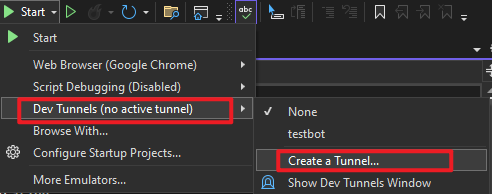
|
|
2. Right-click the 'TeamsApp' project in Solution Explorer and select Teams Toolkit > Prepare Teams App Dependencies
|
|
3. If prompted, sign in to Visual Studio with a Microsoft 365 work or school account
|
|
4. Press F5, or select Debug > Start Debugging menu in Visual Studio to start your app
|
|
</br>
|
|
5. In the opened web browser, select Add button to test the app in Teams
|
|
6. In the message input field, type and send anything to your bot to get a response
|
|
|
|
## Debug in Test Tool
|
|
Teams App Test Tool allows developers test and debug bots locally without needing Microsoft 365 accounts, development tunnels, or Teams app and bot registration. See https://aka.ms/teams-toolkit-vs-test-tool for more details.
|
|
|
|
## Run the app on other platforms
|
|
|
|
The Teams app can run in other platforms like Outlook and Microsoft 365 app. See https://aka.ms/vs-ttk-debug-multi-profiles for more details.
|
|
|
|
## Get more info
|
|
|
|
New to Teams app development or Teams Toolkit? Explore Teams app manifests, cloud deployment, and much more in the https://aka.ms/teams-toolkit-vs-docs.
|
|
|
|
## Report an issue
|
|
|
|
Select Visual Studio > Help > Send Feedback > Report a Problem.
|
|
Or, create an issue directly in our GitHub repository:
|
|
https://github.com/OfficeDev/TeamsFx/issues
|